How to translate game text on PC

There are three ways to play a PC game that isn’t in your language: use an existing translation, hook the text out of the game, or read it from the screen with OCR. Which one fits depends on the game more than on the tool, so check them in this order.

Updated for Lexa 0.5.41

The short answer

  1. Does the game already exist in your language, officially or as a fan translation?

    Use that translation. A complete human translation is still the best way to play. Method A: Official or fan translation

  2. Does a text hooker support the game’s engine? Many visual novels qualify.

    Hook the text to get an exact copy of each line, then machine-translate it. Method B: Text hooking

  3. Neither, or you also need menus, items and quests translated?

    Use an OCR screen translator, which reads the words the game draws on screen. Method C: OCR screen translation

Three ways to translate a PC game, compared

Each method gets the text a different way, and that decides what it needs from the game and what it can translate.

Translation patches, text hooking and OCR screen translation compared
ComparedOfficial or fan translationText hookingOCR screen translation
Where the text comes fromTranslated text built into the game filesThe running game’s memoryThe pixels shown on your screen
Needs support for your gameYes: a translation for your game and its versionYes: a supported engine, sometimes a hook codeNo, but the text must be visible and legible
SetupFind, download and apply it for each gameAttach to the game and pick the right text streamInstall once, then point it at the text
What gets translatedWhatever the translators finished, often everythingText the hook captures, usually dialogueAny legible text you point it at
Translation qualityHuman translation, usually the bestMachine translation of the exact textMachine translation; hard-to-read text can be misread
Changes game filesUsuallyNo, but it attaches to the game processNo
Where you read itIn the game itselfIn a separate windowIn a panel, tooltip or small window over the game

Official localization or a fan translation patch

Best when one exists for your game and version.

Before anything else, check whether the game already speaks your language. Look in its language or text settings and on its store page’s language list: some games ship more languages than their trailer suggests. If not, fan translators may have released a patch that replaces the original text with a translated version, often with menus, items and tutorials included.

How to start

  1. Search for the game’s name with “translation patch” or “English patch”. For visual novels, VNDB lists translated releases.
  2. Check which game version and store edition the patch was made for. An update can stop it from working.
  3. Back up your save files and follow the patch’s own instructions, usually copying files or running a patcher.

Watch for: patches only exist for some games, may be unfinished, and change game files. Only download them from the translation group or a trusted community. If you’d rather leave the files alone, see reading visual novels without a patch.
Text hooking with a tool such as Textractor

Best for visual novels and other single-player games on supported engines.

A text hooker attaches to the running game and copies text as the game prepares to display it. Because it reads the text itself rather than an image of it, there are no recognition errors, and the copy can be sent to a machine translator. Visual novel engines are well covered; many other games aren’t.

How to start

  1. Start the game, open the hooker and attach it to the game’s process.
  2. Advance a line of dialogue and pick the text stream that shows it cleanly. Others may repeat lines or show unrelated text.
  3. Send that stream to a translation extension or window, and keep it next to the game.

Watch for: unsupported engines may need a hook code or not work at all, text drawn as images can’t be hooked, and online games with anti-cheat often don’t allow other programs to attach. For a detailed comparison, read Textractor vs OCR for visual novels.

OCR screen translation

Best when no translation exists and hooking doesn’t work, or for menus and items.

An OCR (optical character recognition) screen translator captures part of the screen, reads the characters in it and translates them. It works from what the game shows, so it doesn’t depend on the engine and doesn’t touch the game. The trade-off: it can only read text that is legible on screen, and the result is still machine translation.

Lexa is an OCR screen translator for Windows, and the rest of this guide shows how to use it with games. The OCR translator for PC page covers it for other apps, documents and videos.

Watch for: very small, decorative or low-contrast fonts can be misread, the game has to run in Borderless Fullscreen or Windowed mode for Lexa to draw over it, and reading the screen continuously uses some of your PC’s resources.

Dialogue, quests and menus: which Lexa mode to use

Game text behaves in three ways: it keeps changing in one place, it sits still all over the screen, or you only need one piece of it. Lexa has a mode for each, on the same toolbar.

Dialogue and subtitles

RealtimeCtrl+Alt+F8

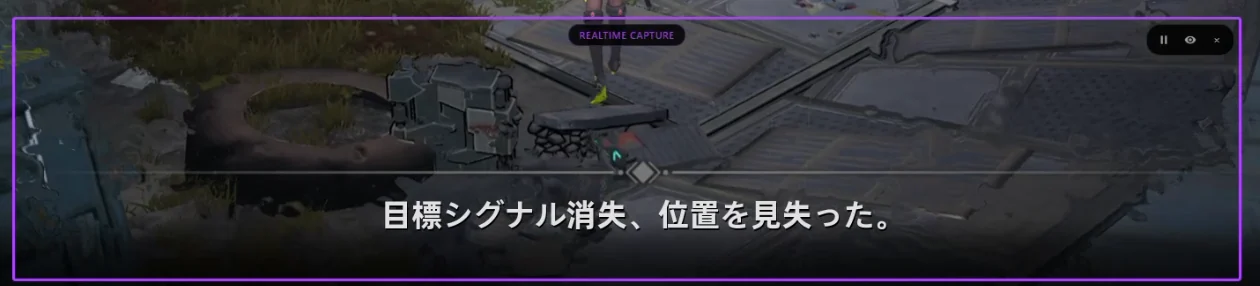
Place the frame over the dialogue box or subtitle line once. Lexa reads again whenever the text inside changes, and the panel keeps the latest lines, so you can keep playing. Keep the frame around the text only: a bigger area takes longer to read.

An MMORPG cutscene with Lexa’s violet Realtime frame around the Japanese subtitle “目標シグナル消失、位置を見失った。”
A cutscene subtitle inside the Realtime frame. Lexa’s panel showed: “The target signal disappeared, and the position was lost.”

Menus, settings and labels

WatchCtrl+Alt+F5

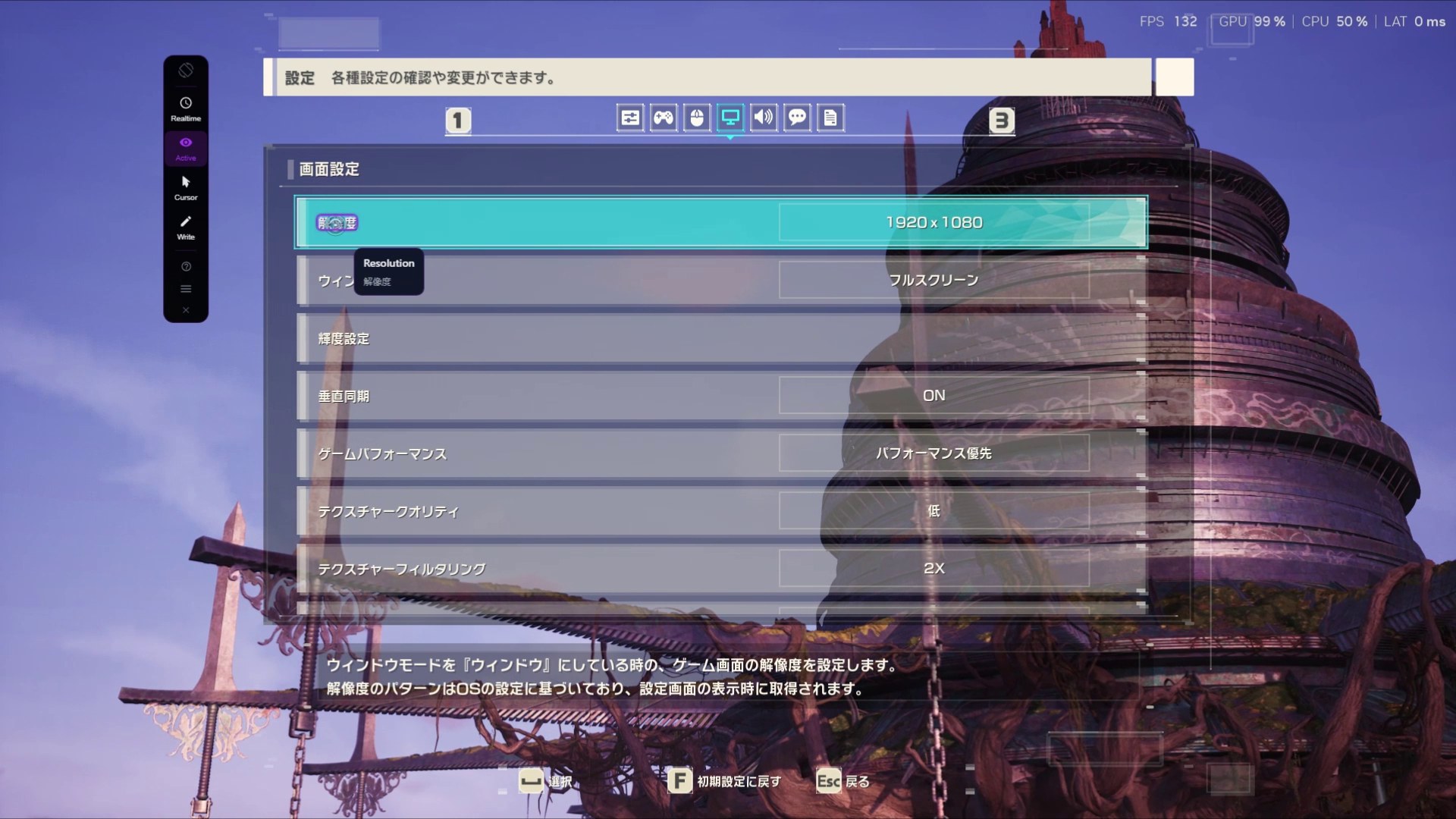
Turn Watch on and Lexa looks for text in the screen or window you chose. Hover a label or a button and a tooltip shows its translation, with the original underneath. Useful for settings you need to get right before you start, and for inventory and skill screens full of short labels.

Lexa Watch mode on a Japanese game’s display settings: the 解像度 label is highlighted and a tooltip below it reads “Resolution”, with 解像度 underneath.
Hovering 解像度 in a JRPG’s display settings: the tooltip reads “Resolution”.

Quests, item descriptions and tooltips

CursorCtrl+Alt+F7or Watch

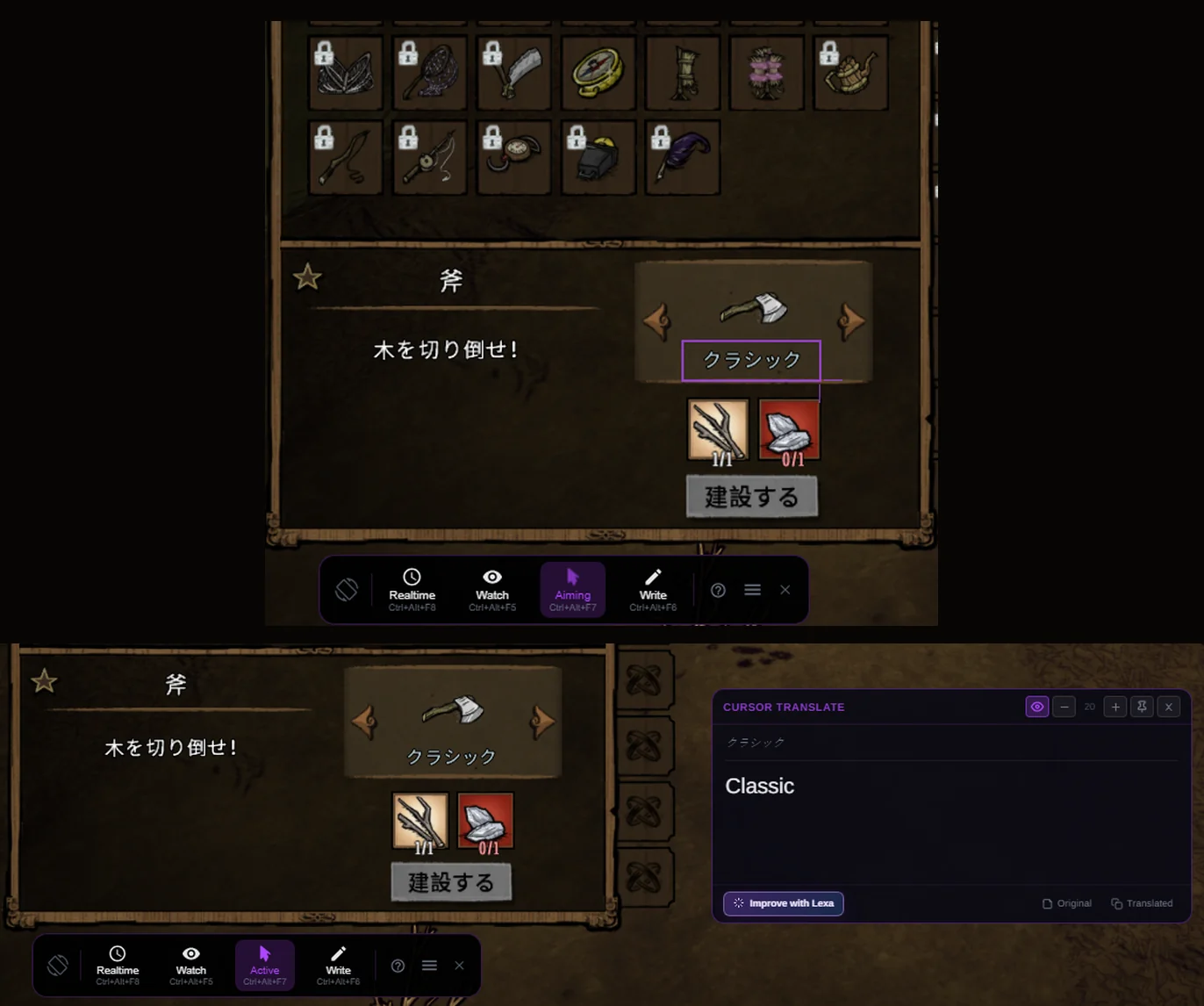
For one quest description, an item’s text or a tooltip, start Cursor and drag a box around just that text. The translation opens in a small window and nothing keeps running afterwards. When a quest log or item list has many short entries, Watch is quicker: hover each one.

Lexa Cursor mode in two steps on a Japanese game’s crafting menu. Top: a violet box is drawn around the item label クラシック. Bottom: the Cursor Translate window beside the game shows クラシック and its translation, “Classic”.
Boxing an item name in a crafting menu, then reading it in the Cursor Translate window.

By kind of game

Visual novels
Mostly dialogue in one box: Realtime for the story, Cursor for a choice you want to check, Watch for menus. See the visual novel translator for that workflow in detail.
RPGs and JRPGs
Dialogue plus a lot of menu text: Realtime during conversations, Watch or Cursor for equipment, skills and quest logs.
MMORPGs
Patches and hooks are rarely an option in online games. Realtime suits cutscene subtitles; Cursor suits a quest or a message you want to read once. See how to translate MMORPG quest text for a worked example.

How to translate a game with Lexa, step by step

From installing Lexa to reading your first translated line. The first time takes a few minutes; after that, you open the toolbar and pick a mode.

  1. Step 1: Install Lexa and sign in

    Get Lexa from the Microsoft Store or with the Windows installer (.exe). On first launch, create or sign in to your Lexa account. Lexa then downloads its on-device translator, once.

  2. Step 2: Run the game in Borderless Fullscreen or Windowed mode

    Lexa draws its toolbar, frame and translations above the game, which isn’t possible over exclusive fullscreen. Change the display or window mode in the game’s graphics settings before you start.

  3. Step 3: Set the game’s language and yours

    In setup, choose the game’s language under “You want to translate texts from:” and your own under “To:”, then Finish Setup. Later, change them in Settings, under Translation Languages. For every setup screen in order, see the first-run walkthrough.

  4. Step 4: Choose the screen or the game window

    Current screen is selected by default and covers everything on that monitor. To have Lexa follow only the game, pick it under Open apps. Then choose Open Lexa toolbar.

  5. Step 5: Start Realtime, Watch or Cursor

    Use the toolbar button or the shortcut. Realtime for dialogue and subtitles, Watch for menus and labels, Cursor for one piece of text; examples above. You can change the shortcuts in Settings, under Modes & shortcuts.

    • RealtimeCtrl+Alt+F8
    • WatchCtrl+Alt+F5
    • CursorCtrl+Alt+F7
  6. Step 6: Read the translation where it appears

    Realtime
    A panel beside the frame shows each new line with the original above it, and earlier lines under History. Move and resize the panel to keep it off the action. Pause on the frame holds the translation; closing the frame ends the session.
    Watch
    A tooltip next to the text you hover. The same button or shortcut turns Watch off.
    Cursor
    A small Cursor Translate window. Press the shortcut again to close it, then once more to box something else. Pin the window to keep it open and add each new box to it.
Realtime in a visual novel: the violet frame sits on the dialogue box, and the panel at the top left shows each line and its translation as the story moves on.

If the translation doesn’t look right

Change one thing at a time. Most problems come from the display mode, the area Lexa reads, or the text itself.

The toolbar or translations don’t appear over the game

The game is probably in exclusive fullscreen. Switch it to Borderless Fullscreen or Windowed mode. If you picked the game under Open apps and it entered fullscreen, Lexa can’t use that window until you switch.

Small, stylized or low-contrast text comes out wrong

OCR reads what it can see. If the game has text size or UI scale options, raise them, or play at a higher resolution. Wait for text animations and effects to finish, and fit the frame or Cursor box closely around the words. Decorative fonts and text over busy backgrounds may still be misread.

Lexa reads the wrong text, or extra parts of the screen

Move the Realtime frame and pull its edges until it covers only the area where lines appear. Some games move the text box between scenes and cutscenes, so reposition it when that happens. For Watch, choose the game under Open apps instead of Current screen so other windows aren’t included.

Dialogue moves on before you can read it

Turn off the game’s auto-advance while you read. Earlier lines stay in the Realtime panel under History.

Translations lag, or the game feels heavier

By default Lexa reads and translates on your PC, so speed depends on your hardware and on the game. Keep the Realtime frame small, close other demanding programs, and give Watch a moment after the screen changes before you hover. On a weaker PC, Cloud (Pro, experimental) moves reading and translation off your computer: choose it in Settings, under “Realtime, Watch and Cursor processing”. It needs an internet connection and available capacity, and activation can take a few minutes.

The translation is in the wrong language

In Settings, under Translation Languages, set “I see text on my screen in…” to the game’s language and “Translate to…” to yours.

Questions about translating games

Not with every method. A translation patch only exists for some games, and text hooking only works on engines the hooker supports. OCR screen translation doesn’t need game-specific support, but the text has to be visible and legible, and with Lexa the game has to run in Borderless Fullscreen or Windowed mode. Very small, decorative or low-contrast text can still be misread.

Usually, yes, when it is complete and made for your version of the game. Human translators handle names, jokes and tone that machine translation can miss. Machine translation is for games nobody has translated, or for the parts a patch doesn’t cover: it is good enough to follow a story and find your way through menus, but it isn’t a localization.

No. A text hooker is a good choice when it supports the visual novel’s engine, because it reads the exact text. When it doesn’t, or you would rather not attach a tool to the game, OCR reads the dialogue box from the screen instead. Many readers keep both available.

No. Lexa doesn’t inject code, install plugins or modify files. It reads what the game shows on screen and displays the translation in its own windows. We can’t speak for how every online game’s rules or anti-cheat treat third-party tools, so check the game’s terms if you’re unsure.

It uses some CPU and memory to capture, read and translate, and how noticeable that is depends on your PC and the game. Realtime only reads again when the text inside its frame changes, and a small frame has less to read than a large one. On a weaker PC, Cloud (Pro, experimental) can take reading and translation off your computer; it needs an internet connection and available capacity.

Lexa has 22 languages to choose from, and the same list is used for the text on screen and the translation. It includes Japanese, Chinese (Simplified and Traditional), Korean, English, Spanish, Brazilian Portuguese, French, German and Russian. You choose both during setup, and can change them later in Settings under Translation Languages.

You need a Lexa account, and an internet connection to sign in and for the one-time download of Lexa’s on-device models on first launch. After that, reading and translating screen text run on your PC by default. Local processing doesn’t mean every feature works offline: Write, Lexa Improvements and Cloud (an optional Pro feature) are processed online.

No translation for your game? Read it from the screen

Install Lexa, switch the game to Borderless Fullscreen or Windowed mode, and start with one line of dialogue in Realtime.

Free to use on Windows 10 and 11. Cloud processing is part of Pro.