Complete Guide

How to Translate
Game Text on PC

Three methods to translate in-game text compared fan patches, text hookers, and OCR screen translation. Find the right approach for your setup.

3 methods compared
Pros & cons
Step-by-step guide
Method 1 — Traditional

Fan-Made Translation Patches

Community-created patches that replace in-game text with a translated version.

How It Works

Fan translation teams usually reverse-engineer a game’s files to find all the text, like dialogue, menus, item descriptions, tutorials, and UI elements. After that, they replace the original text with a translated version and release it as a downloadable patch.

1.Find the patch: look on community sites like VNDB, GBAtemp, or fan translation blogs using your game’s name and version.
2.Check your game version: patches are made for specific versions (for example, v1.02 JP). If your game has been updated, the patch might not work or could even break things.
3.Apply the patch: follow the instructions included with it. Usually this means copying files into the game folder or running a patcher that modifies the game data.
4.Play: start the game normally. The translated text should show up in-game as if it were officially localized.

Quality can vary a lot. Some patches feel almost professional, while others are incomplete or rely on machine translation. For story-heavy games, a full translation can take years to finish.

Pros

  • Full translation when available
  • Free and community-driven
  • Native feel, text is embedded
  • Better translation quality than machine translation

Cons

  • Don't exists for all titles
  • Requires specific game version
  • Breaks after updates
  • Complex installation for some games

Best for: Popular games with completed fan translations. Not viable for most titles.

Method 2 — Engine-Dependent

Text Hookers (Textractor & Similar)

Tools that extract text from a game's memory and send it to a machine translator.

How It Works

Text hookers like Textractor work by attaching to a running game process and intercepting the functions responsible for displaying text on screen. Instead of reading pixels like OCR, they grab the raw text directly from the game’s memory.

1.Install Textractor: download and run the tool. It should be open before or while you launch the game.
2.Attach to the game process: pick your game from the list of running processes. Textractor will try to detect hooks, which are memory locations where the game stores text.
3.Find the right hook: most games output several text streams, including debug info, repeated lines, or just garbage. You’ll need to click through them to find the one that shows clean dialogue.
4.Connect a translator: send the extracted text to a translation tool or extension, or even just use the clipboard. The translation will show up in a separate window next to the game.

This approach is popular in the visual novel community because many VN engines like KiriKiri, Ren'Py, and Unity have well-known hooks. For other types of games, like RPGs, action, or strategy, it’s much less reliable. Some engines handle text in ways that make hooking difficult or just don’t expose it in memory at all.

Pros

  • Works with supported engines (KiriKiri, Ren'Py, and others)
  • Extracts raw text accurately, no OCR errors
  • Real-time once configured correctly
  • Free and open-source tools available

Cons

  • Only works with specific game engines
  • Requires per-game configuration
  • No on-screen overlay
  • Does not work with images or non-text rendering

Best for: Games with known engine support (many VNs). Unreliable for other genres.

Method 3 — Recommended

OCR Screen Translation

Software that reads text directly from screen pixels and translates it in real time.

How It Works

OCR (Optical Character Recognition) screen translators work directly from what’s on your screen. They capture a selected area, recognize the text inside the image using AI, and send it to a translation engine. The translated result is then shown either on top of the game or in a side window.

1.Select a screen region: choose where the text appears, like a dialogue box, menu, or HUD. With tools like Lexa, you simply select the window you want to capture.
2.Text recognition: the software scans the image, identifies characters (Japanese, Chinese, Korean, or others), and converts them into digital text.
3.Translate the text: the extracted text is translated with a cloud service or, when Local translation is selected, on your computer. Cloud results usually come back almost instantly.
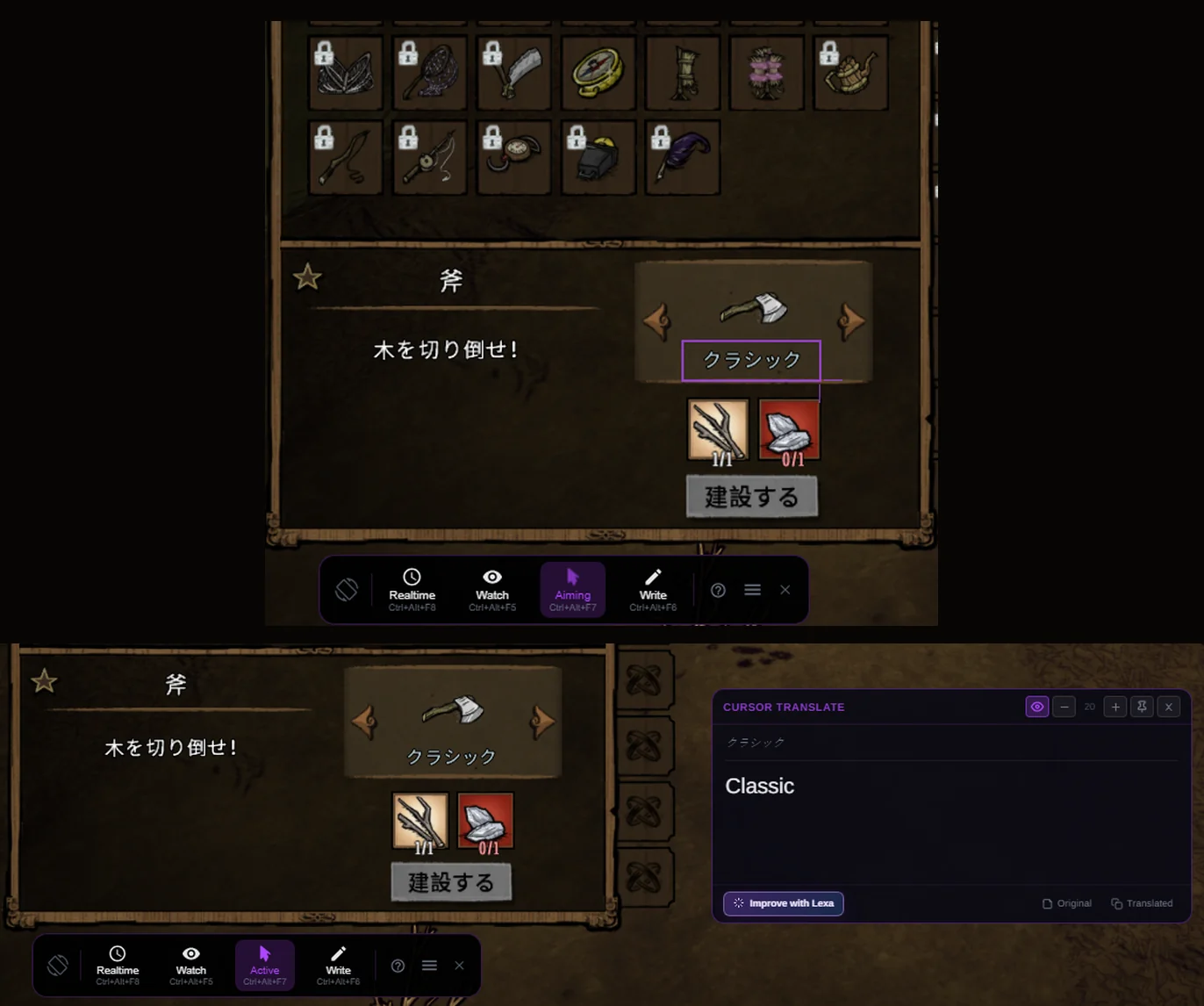
4.Display the translation: in realtime mode, this keeps updating as new text appears. In snapshot/cursor mode, you trigger it manually when you want.

Since OCR reads directly from the screen, it works with basically anything. It doesn’t depend on the game engine, platform, or DRM. You can also use it outside of games, like in browsers, PDFs, video players, or any app showing text in another language.

Pros

  • Works with any game, any engine
  • No per-game setup
  • Also works with apps, videos, etc.
  • No file modification

Cons

  • Depends on text readability and font clarity
  • May struggle with very small or heavily stylized text
  • Translation quality depends on the AI model or machine translation

Best for: Any game or application. Works basically anywhere, but not always the fastest or most accurate option.

Try Lexa — free OCR screen translator for Windows
Side by Side

All Three Methods Compared

A quick overview to help you decide.

Works with any game

Fan Patches

Limited

Text Hookers

Some engines

OCR (Lexa)

Yes

Setup per game

Fan Patches

Yes

Text Hookers

Yes

OCR (Lexa)

No

Real-time translation

Fan Patches

N/A

Text Hookers

Partial

OCR (Lexa)

Yes

Modifies game files

Fan Patches

Yes

Text Hookers

No

OCR (Lexa)

No

Works with non-games

Fan Patches

No

Text Hookers

No

OCR (Lexa)

Yes

On-screen overlay

Fan Patches

N/A

Text Hookers

No

OCR (Lexa)

Yes

Try It

Get Started with OCR Translation

The fastest way to translate game text, in under a minute.

Step 1

Download Lexa

Install Lexa Translator for Windows. One installer, no dependencies.

Step 2

Launch Your Game

Open the game with foreign text. Lexa works alongside any windowed application.

Step 3

Activate Realtime Mode

Select the game window in Lexa, pick your languages, and start Realtime mode. Translation appears as an overlay.

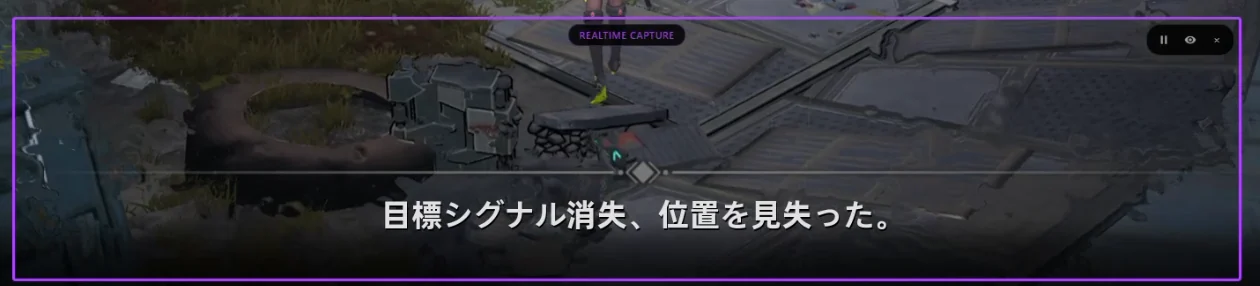
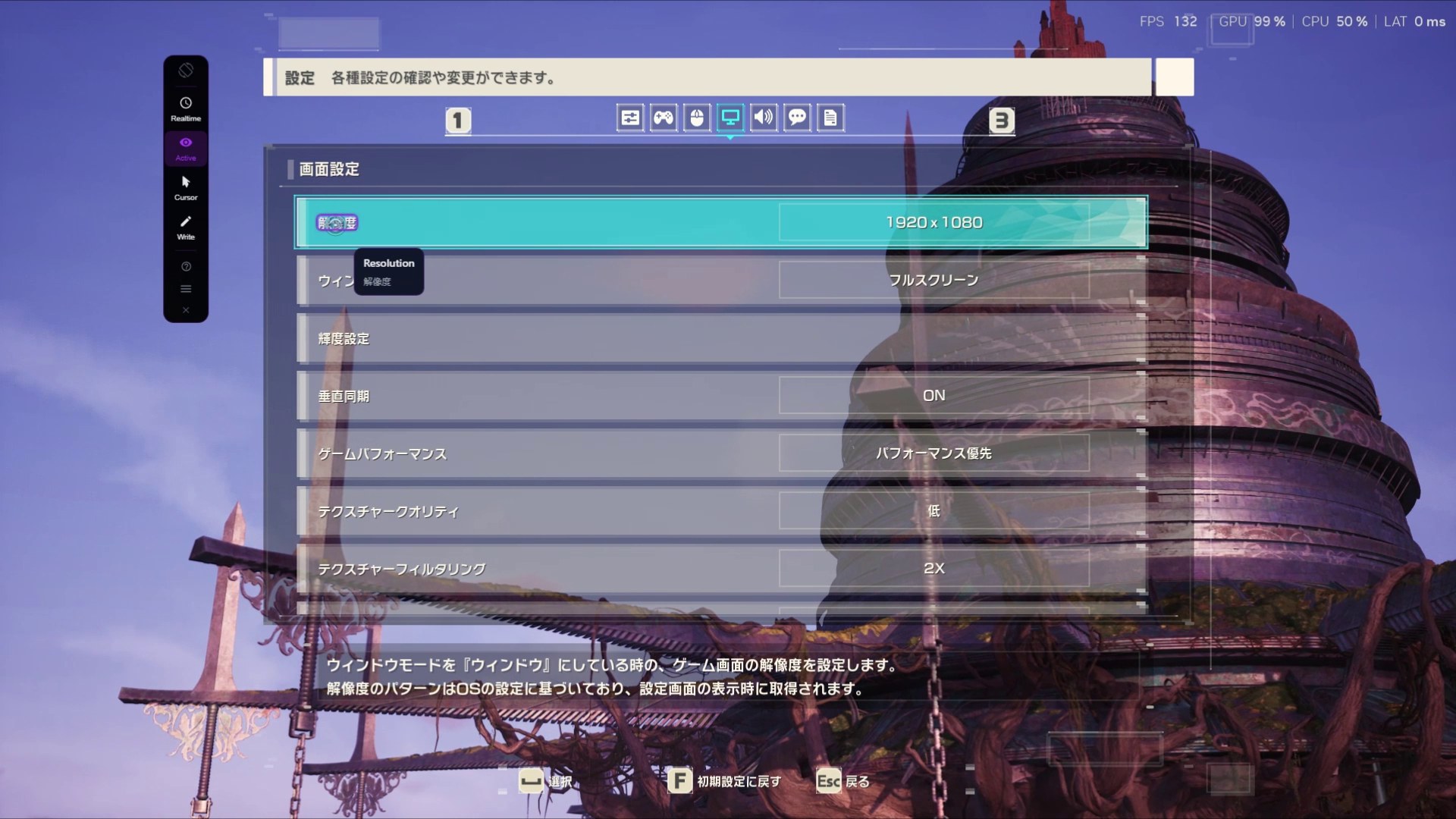
Lexa translating game in realtime using OCR from japanese to english.

FAQ

Frequently Asked Questions

Common questions about translating game text

It depends on the game.

OCR screen translation works in almost any situation since it doesn't depend on the engine or platform, but it can be less accurate and slightly slower.

Text hooking is usually more accurate and responsive when it works, especially in visual novels, but it's not supported by every game.

Fan patches offer the best experience when available, but they only exist for a limited number of titles.

Yes. Many players combine different approaches depending on the game.

Text hookers work well for visual novels with known engine support, while OCR is useful for everything else.

Fan translation patches can also be used when available, often providing the best experience since the text is already fully translated in-game.

OCR accuracy depends on text clarity.

Modern OCR handles most game fonts well, including Japanese, Korean, and Chinese characters. Very small pixel fonts in retro games may have lower accuracy.

Machine translation quality has improved significantly.

While it may not match a professional human translation, it is more than sufficient to follow game stories, understand mechanics, and navigate menus.

Lexa requires sign-in and an internet connection.

Local translation runs on your computer when selected, while Faster and some Recommended routes use cloud translation.

Ready to Try the OCR Approach?

Download Lexa and start translating game text in real time. Works with any game, any engine, any language.

Any game
No mods
Real-time
Free to try