OCR Translator for PC
Lexa is a screen translator for Windows. It reads text from your games, apps, scans and videos and shows the translation beside it. No copying or pasting, even when the text can’t be selected.
Free to use on Windows 10 and 11.
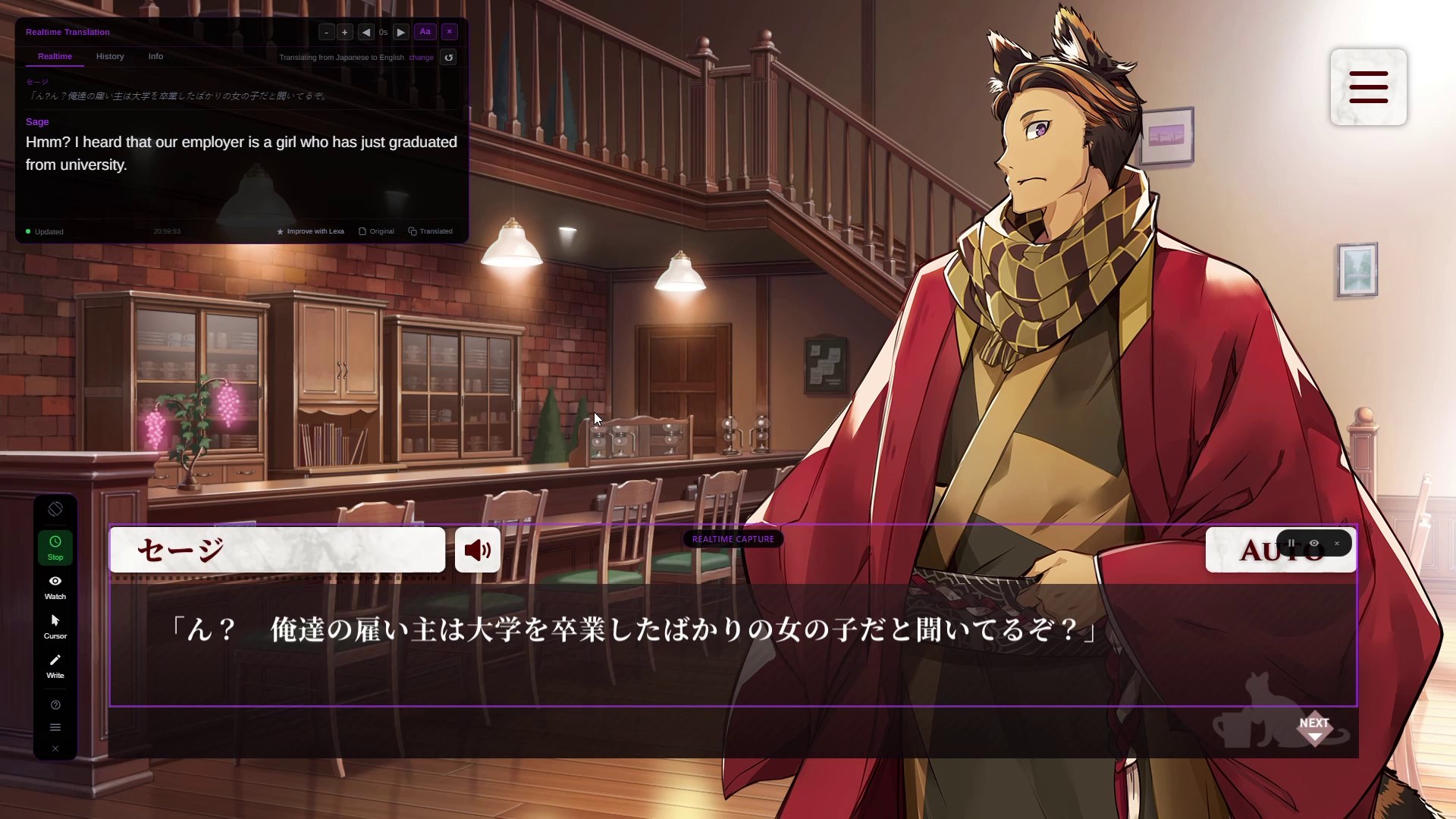
On screen (Japanese)
セージ
「ん? 俺達の雇い主は大学を卒業したばかりの女の子だと聞いてるぞ?」
In Lexa’s panel
Sage
Hmm? I heard that our employer is a girl who has just graduated from university.
Text you can see but can’t select
Games, apps and videos often draw their words as pixels, so there is nothing to highlight, copy or paste into a translator. Lexa reads the pixels instead. Three real captures:
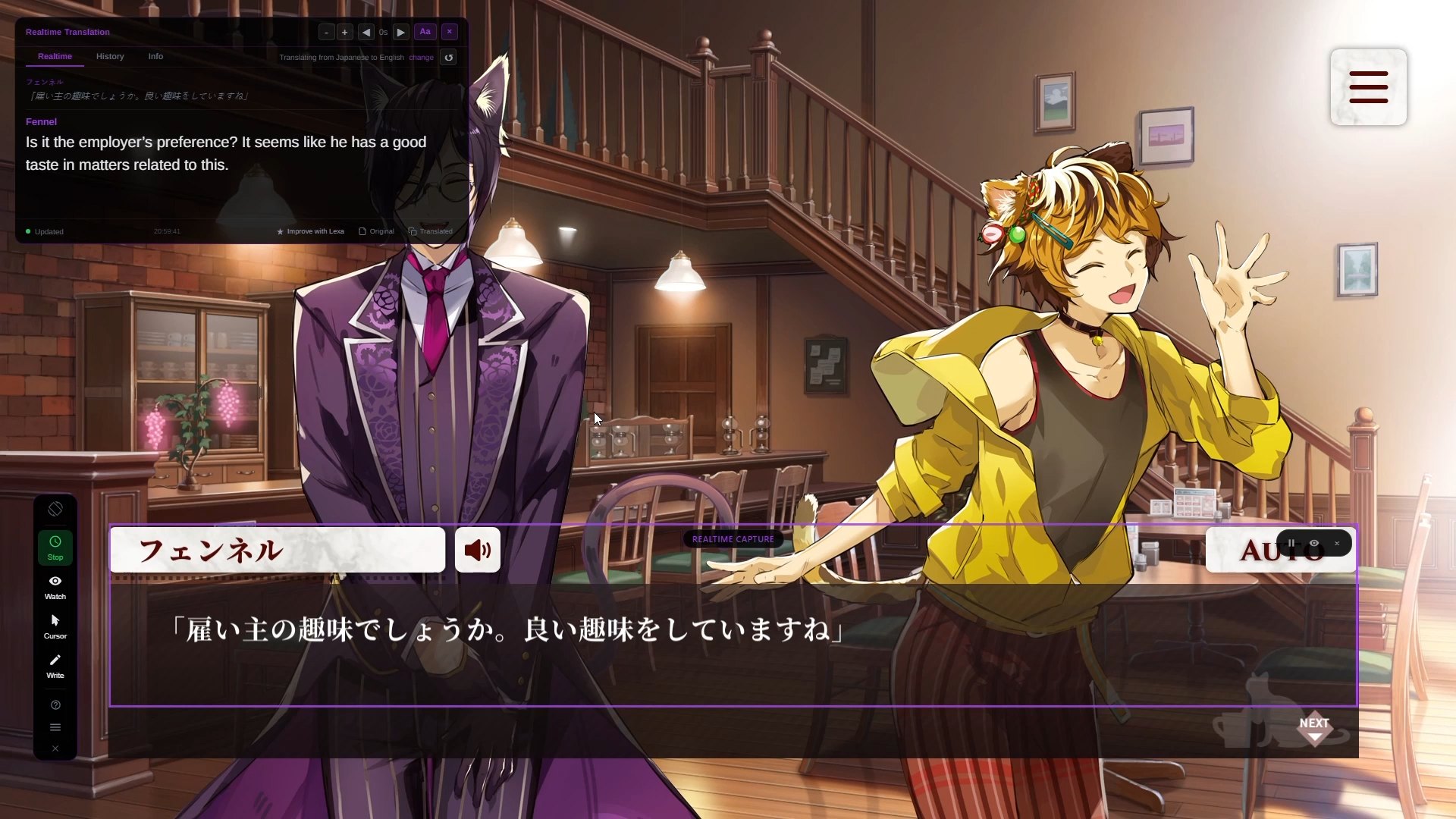
Visual novel dialogue · Realtime
Aiどう、これ?
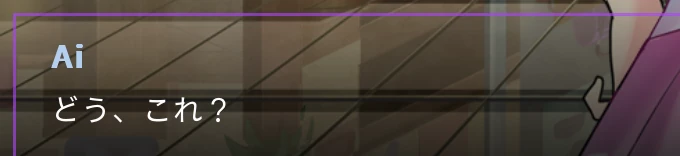
Lexa’s translation:What do you think of this?
The Realtime frame sits on the dialogue box. Each time the line changes, Lexa reads it again and the panel shows the new translation. Use it to follow dialogue as it changes, or subtitles shown in a video.
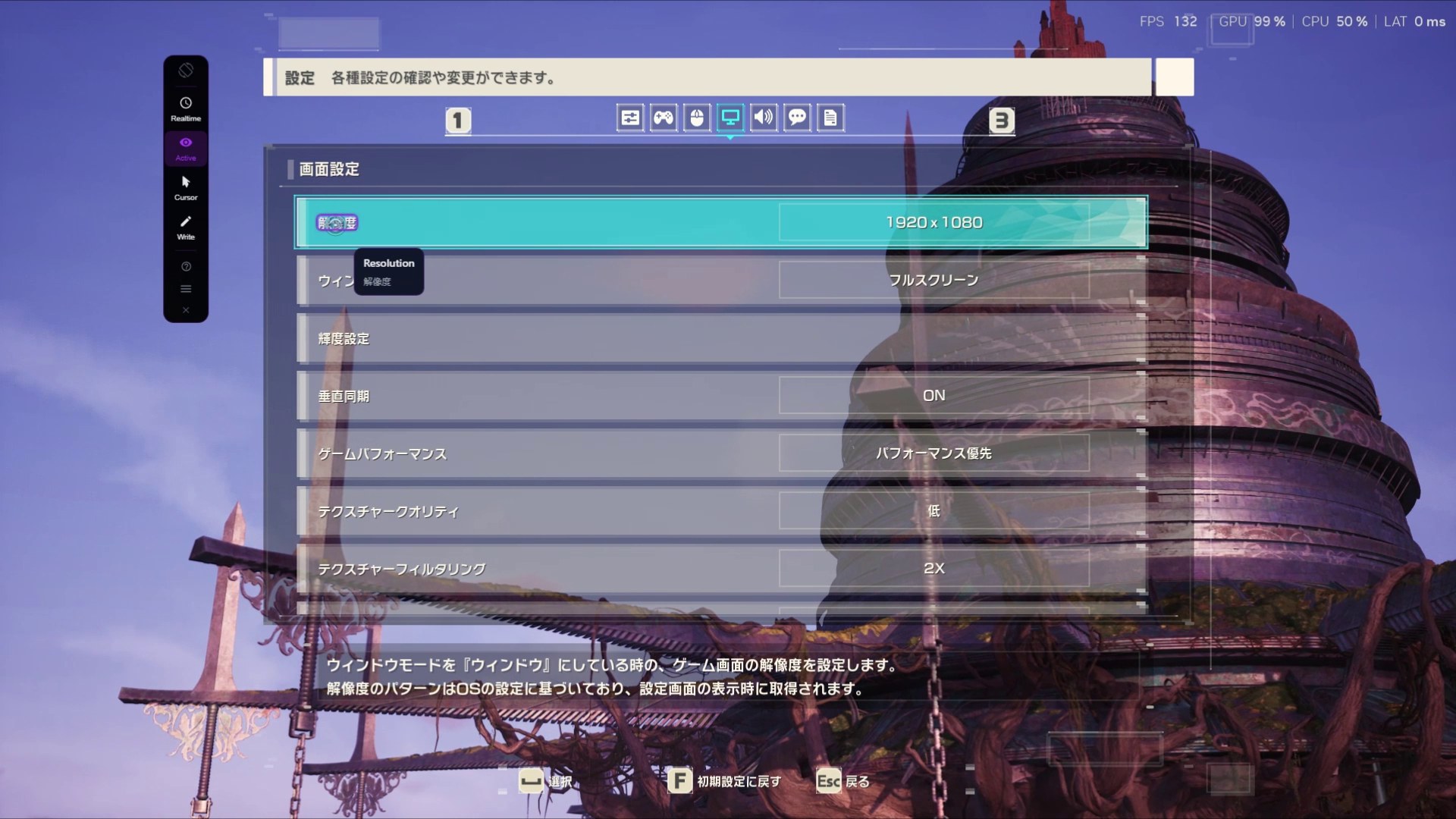
Reading visual novels? See the visual novel translatorGame settings menu · Watch
フルスクリーン
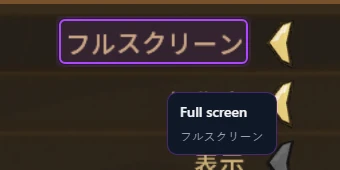
Lexa’s translation:Full screen
Hover a label and its translation appears in a tooltip beside it, with the original underneath. No retyping words in a writing system you can’t read.
How to translate game textSpreadsheet in a desktop app · Watch
SALDO INICIAL
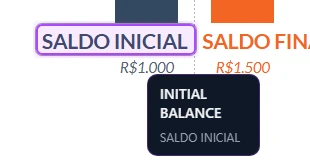
Lexa’s translation:INITIAL BALANCE
Desktop software works the same way. There is no add-on for the app; Lexa only reads what is on screen.
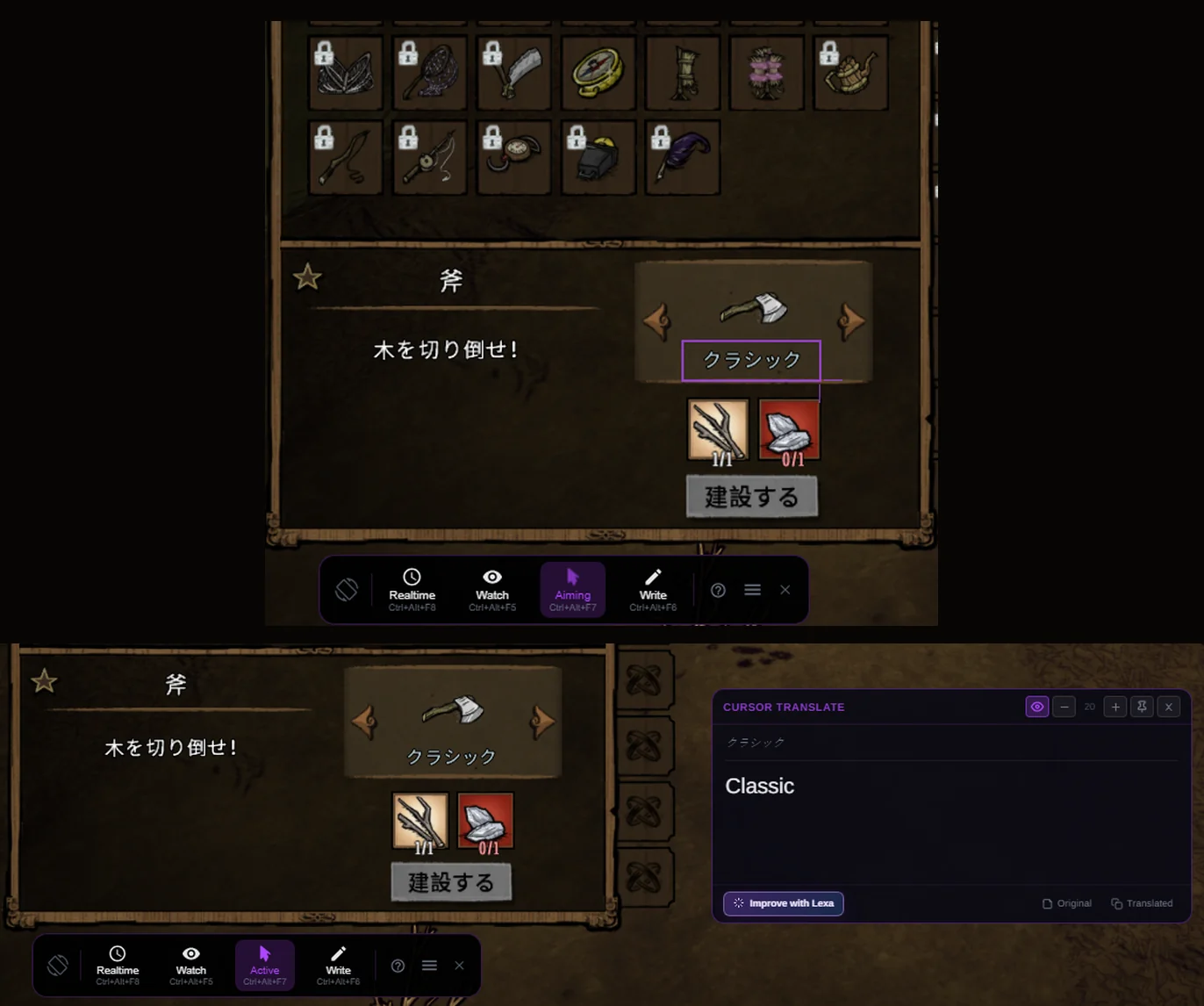
Anything else · Cursor Ctrl+Alt+F7
A scanned PDF, text inside an image, a dialog in desktop software.
Drag a box around just that text and read the translation in a small window.
Choose the mode by how the text behaves
Lexa reads the screen in three ways. All three sit on the Lexa toolbar, and each has its own shortcut.
The text keeps changing in one place
UseRealtimeCtrl+Alt+F8
Dialogue boxes and subtitles. Put the frame over the text once. Lexa reads again only when the text inside changes, and the panel shows the latest lines.
The words stay put, all over the screen
UseWatchCtrl+Alt+F5
Menus, settings, buttons and item names. Hover a label and a tooltip translates it, with the original underneath. Move to the next label and it follows.
You need one passage, once
UseCursorCtrl+Alt+F7
A paragraph in a scan, a caption inside an image, a message in a dialog. Drag a box around it and read the translation in a small window that closes when you’re done.
It works over your apps, not inside them
Lexa reads what your screen shows, so the program with the text doesn’t need to support translation, or even know Lexa is there.
Check this first: exclusive fullscreen
If a game runs in exclusive fullscreen, Lexa can’t show its toolbar or translations over it. Switch the game to Borderless Fullscreen or Windowed mode first.
No add-on for each app
Lexa reads text from what is displayed, so there is nothing to install in each browser, PDF viewer, video player or game. The text only has to be visible and legible on screen.
Your software stays untouched
Lexa doesn’t inject code, install plugins or modify files. Its toolbar floats above your windows instead.
Results stay out of your way
Each mode’s result window stays on top of your app without taking focus from it. Realtime’s panel can be moved and resized.
From install to your first translation
No API keys or config files.
Step 1: Install Lexa and create an account
Get it from the Microsoft Store or with the Windows installer (.exe). It runs on Windows 10 and 11.
Step 2: Tell Lexa where to look
Open the game, browser tab, PDF, video or app with the text. In Lexa, pick the source and target languages, keep Current screen or select that app’s window, then open the Lexa toolbar.
Step 3: Point it at the text
Drag the Realtime frame over text that changes, hover labels with Watch, or box one passage with Cursor.
- RealtimeCtrl+Alt+F8
- WatchCtrl+Alt+F5
- CursorCtrl+Alt+F7
Under the hood
What happens between the pixels and the translation, and what changes when you use Cloud.
Four stages, every mode
By default all four run on your PC. With Cloud (Pro, experimental), reading and translating move off your PC, which can help when local translation feels heavy. You choose in Settings.
| Stage | Default | With Cloud |
|---|---|---|
| CaptureThe frame, window or box you chose | Your PC | Your PC |
| ReadFinds and reads the text (OCR) | Your PC | Cloud |
| TranslateInto your language | Your PC | Cloud |
| ShowPanel, tooltip or small window | Your PC | Your PC |
What Cloud receives
Only what the mode needs. Capturing the screen and showing the result stay on your PC.
- Realtime
- The area inside its frame, plus the speaker name area if you set one.
- Watch
- The text you hover, or the text areas you group by holding the grouping shortcut. Finding text in the window stays on your PC.
- Cursor
- Only the box you drew.
Languages
22
Languages to choose from, for the text on screen and the translation, including Japanese, Chinese, Korean, Portuguese and Spanish.
Change detection
Realtime keeps watching the area inside its frame, but only reads and translates again when the text there changes. That holds on your PC and with Cloud.
Resource use
Local capture and OCR are tuned to stay light, but speed and how much CPU and memory Lexa uses depend on your PC and on what else is running, such as a demanding game. On a weaker PC, Cloud can take reading and translation off your computer. It needs an internet connection and available capacity.
Before you install
Common questions about using Lexa as an OCR translator on your PC.
An OCR translator uses Optical Character Recognition to read text directly from your screen and convert it into another language. Because it reads what is displayed, it also works when the text cannot be selected, copied, or highlighted.
Lexa reads text from the pixels on your screen, so it works with many Windows programs that show readable text, including browsers, desktop apps, video players, PDF viewers, image editors and games, without per-app plugins or extensions. The text has to be visible and legible on screen. If a game or app runs in exclusive fullscreen, Lexa cannot show its toolbar or translations over it, so switch it to Borderless Fullscreen or Windowed mode first.
In Realtime, Lexa keeps watching the area inside its frame and only reads and translates again when the text there changes. How quickly a translation appears depends on your PC and on what else is running. Cloud (Pro, experimental) can move reading and translation off your computer.
Not by default: Lexa reads and translates on your PC. If you turn on Cloud (Pro, experimental), only what each mode needs is sent for reading and translation: the area inside the Realtime frame, the text you hover in Watch, or the box you draw in Cursor. Capturing the screen and showing the result always stay on your PC.
No. Lexa is a standalone Windows application. It does not inject code, install plugins, or modify the software you are translating.
Yes. Start Realtime and place its frame over the area where subtitles appear. Lexa reads each line shown on screen and translates it as it changes, including captions burned into the video.
Yes. Lexa translates text shown in game windows, such as dialogue, menus and item names. If you mostly read visual novels, the visual novel translator page covers that workflow in more detail.
Point it at the text
Install Lexa, open the thing you couldn’t read, and start with Realtime, Watch or Cursor. Everything runs on your PC unless you choose Cloud.
Free to use on Windows 10 and 11.